End-To-End Near Real-time Traffic Monitoring
Solution that leverages Apache Spark, Apache Airflow, and Docker to process and analyze traffic data.
This project is an end-to-end solution that leverages Apache Spark, Apache Airflow, and Docker to process and analyze traffic data. The system is designed to handle large volumes of data in near real-time, providing insights into traffic patterns and enabling proactive traffic management. The architecture looks like this:
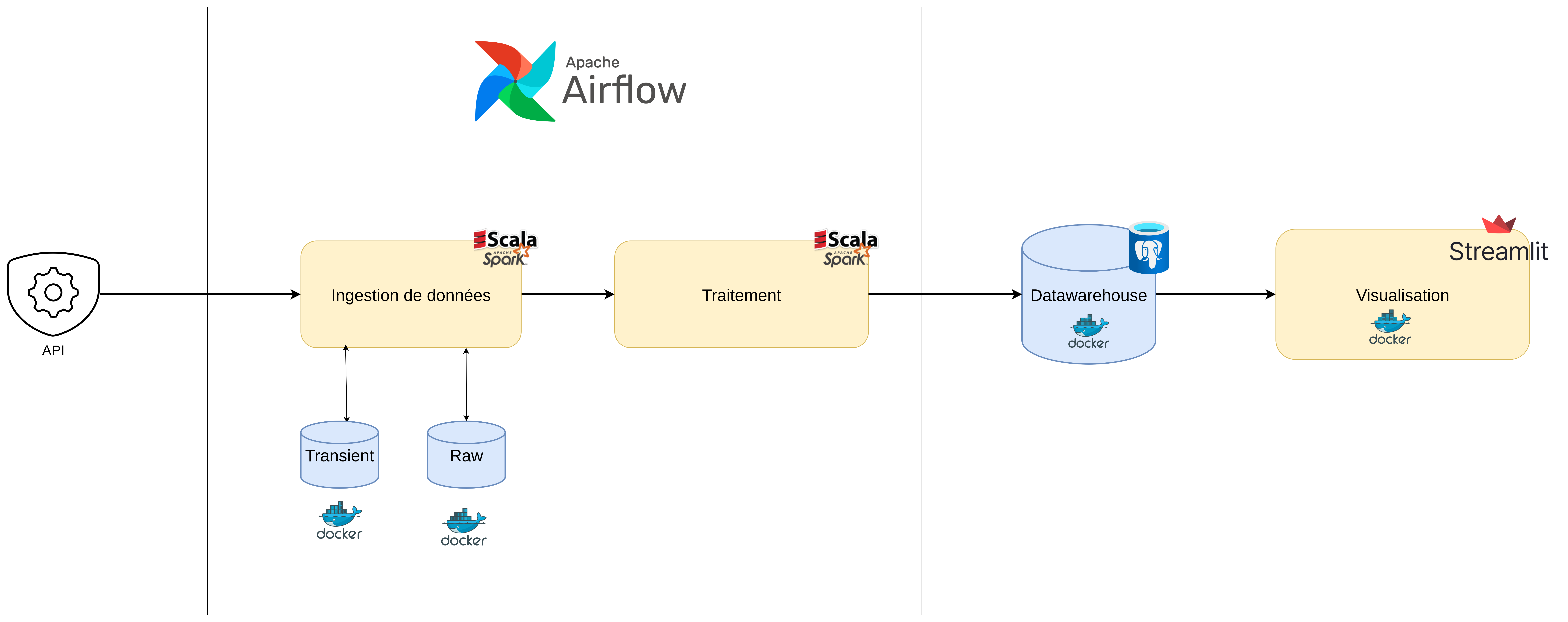
Key Components
The project consists of the following components:
- src/main/resources: Contains configuration files and properties for the application.
- src/main/scala/com/goamegah/flowstate: Contains the main application code, organized into several packages:
- common: Contains utility classes for logging and Spark session management.
- config: Contains the application configuration class.
- db: Contains classes for managing the database schema.
- debug: Contains classes for debugging purposes.
- elt: Contains classes for Extract, Load, and Transform (ELT) processes.
- load: Contains classes for loading data into the data warehouse.
- streaming: Contains classes for processing streaming data.
- transform: Contains classes for transforming traffic data into meaningful features.
Application Configuration
The configuration of the FlowState project is managed through application.conf files, which allow for easy customization and management of various parameters. These files are crucial for setting up the environment, defining data sources, and configuring the Spark application.
Configuration Structure
The configuration is managed by the AppConfig.scala class, which loads the configuration from the resources directory. The configuration is organized into several sections:
API Configuration
api {
  API_ENDPOINT = "..."
  API_URL = "..."
}API_ENDPOINT: The endpoint for the Rennes Metropole APIAPI_URL: The base URL for the API
AWS Configuration
aws {
  iam {
    IAM_ACCESS_KEY_ID = "..."
    IAM_SECRET_ACCESS_KEY = "..."
  }
  REGION = "..."
  s3 {
    S3_RAW_BUCKET_URI = "..."
  }
}IAM_ACCESS_KEY_ID: AWS access key ID for authenticationIAM_SECRET_ACCESS_KEY: AWS secret access key for authenticationREGION: AWS regionS3_RAW_BUCKET_URI: URI for the S3 bucket where raw data is stored
Postgres Configuration
container.postgres {
  DWH_POSTGRES_HOST = "dwh-postgres-db"
  DWH_POSTGRES_PORT = 5432
  DWH_POSTGRES_DB = "dwh_postgres_db"
  DWH_POSTGRES_USR = "dwh_postgres_user"
  DWH_POSTGRES_PWD = "dwh_postgres_password"
  DWH_POSTGRES_DDL_DIR = "../database/ddl"
}DWH_POSTGRES_HOST: Hostname for the Postgres databaseDWH_POSTGRES_PORT: Port for the Postgres databaseDWH_POSTGRES_DB: Database nameDWH_POSTGRES_USR: Username for database authenticationDWH_POSTGRES_PWD: Password for database authenticationDWH_POSTGRES_DDL_DIR: Directory containing DDL scripts
Airflow Configuration
container.airflow {
  AIRFLOW_DATA_DIR = "/opt/airflow/data"
  AIRFLOW_RAW_DIR = "/opt/airflow/data/raw"
  AIRFLOW_TRANSIENT_DIR = "/opt/airflow/data/transient"
}AIRFLOW_DATA_DIR: Directory for Airflow dataAIRFLOW_RAW_DIR: Directory for raw dataAIRFLOW_TRANSIENT_DIR: Directory for transient data
Spark Configuration
container.spark {
  SPARK_CHECKPOINT_DIR = "output/checkpoint"
  SPARK_RAW_DIR = "output/data/raw"
  SPARK_SINK_DIR = "output/data/sink"
  SPARK_DATA_DIR = "output/data"
  SPARK_APP_NAME = "RennesMetropoleTrafficData"
  SPARK_MASTER = "local[*]"
  SPARK_SLIDING_WINDOW_DURATION = "5 minutes"
  SPARK_SLIDING_WINDOW_SLIDE = "1 minute"
  SPARK_TRIGGER_INTERVAL = "60 seconds"
  SPARK_ENABLE_SLIDING_WINDOW = false
  SPARK_ENABLE_HOURLY_AGGREGATION = true
  SPARK_ENABLE_MINUTE_AGGREGATION = true
  SPARK_WATERMARK = "1 minutes"
}SPARK_CHECKPOINT_DIR: Directory for Spark checkpointsSPARK_RAW_DIR: Directory for raw dataSPARK_SINK_DIR: Directory for sink dataSPARK_DATA_DIR: Directory for dataSPARK_APP_NAME: Name of the Spark applicationSPARK_MASTER: Spark master URLSPARK_SLIDING_WINDOW_DURATION: Duration of the sliding windowSPARK_SLIDING_WINDOW_SLIDE: Slide interval for the sliding windowSPARK_TRIGGER_INTERVAL: Trigger interval for the Spark streaming jobSPARK_ENABLE_SLIDING_WINDOW: Whether to enable sliding window aggregationSPARK_ENABLE_HOURLY_AGGREGATION: Whether to enable hourly aggregationSPARK_ENABLE_MINUTE_AGGREGATION: Whether to enable minute aggregationSPARK_WATERMARK: Watermark duration for late data handling
Configuration Loading
The configuration is loaded using the following logic:
- First, it attempts to load
local.conffrom the resources directory - If
local.confis found, it is used with fallback toapplication.conf - If
local.confis not found, onlyapplication.confis used - For certain configuration parameters, default values are provided if the configuration is not found
This approach allows for environment-specific configuration overrides while maintaining sensible defaults.
Data ingestion
Data ingestion is a crucial step in the FlowState project, where real-time traffic data is collected and structured. The data is sourced from the Rennes Metropole API, which provides up-to-date information on traffic conditions. The ingestion process involves fetching this data, transforming it into a suitable format, and storing it for further analysis.
For more details, see com.goamegah.flowstate.elt module.
Ingestion Pipeline
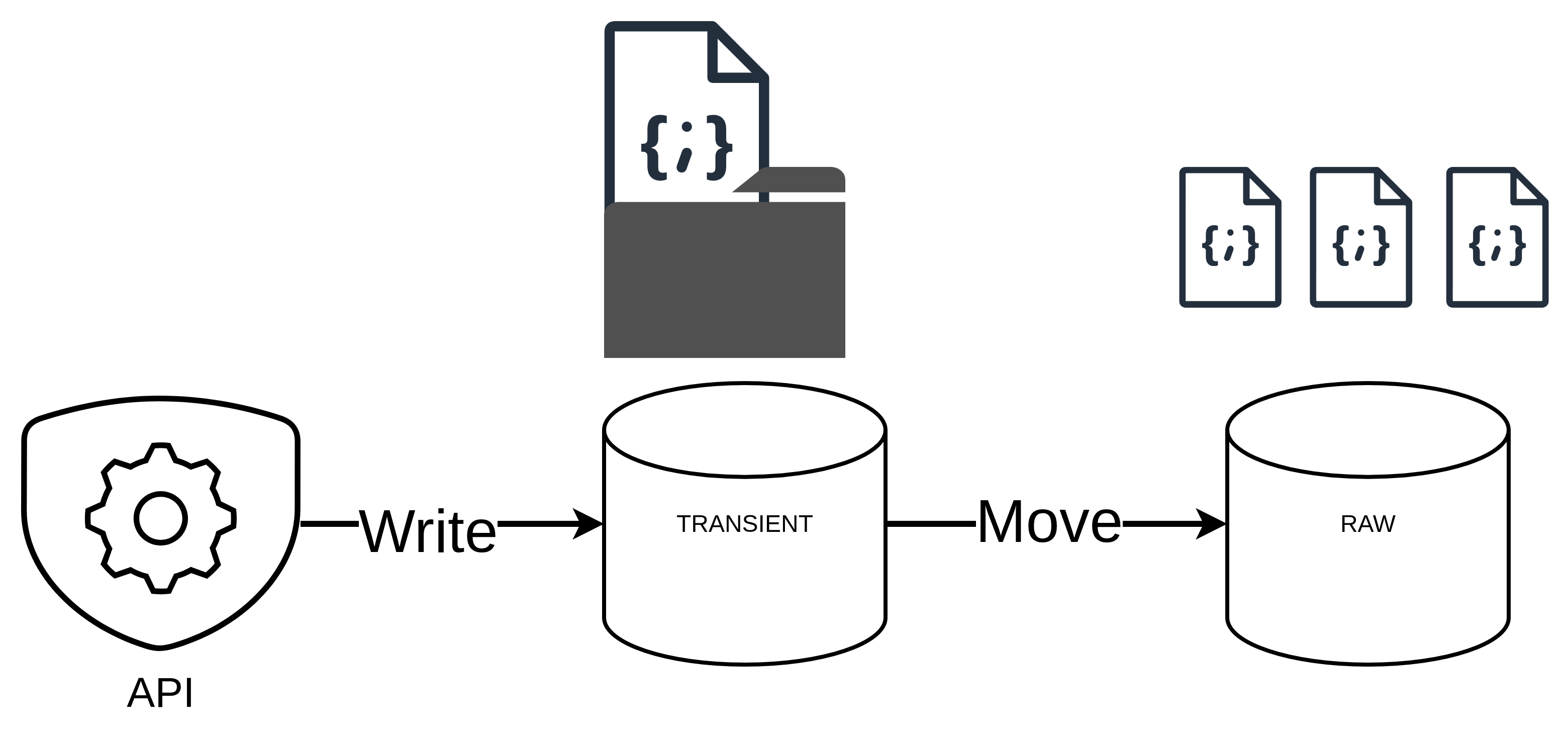
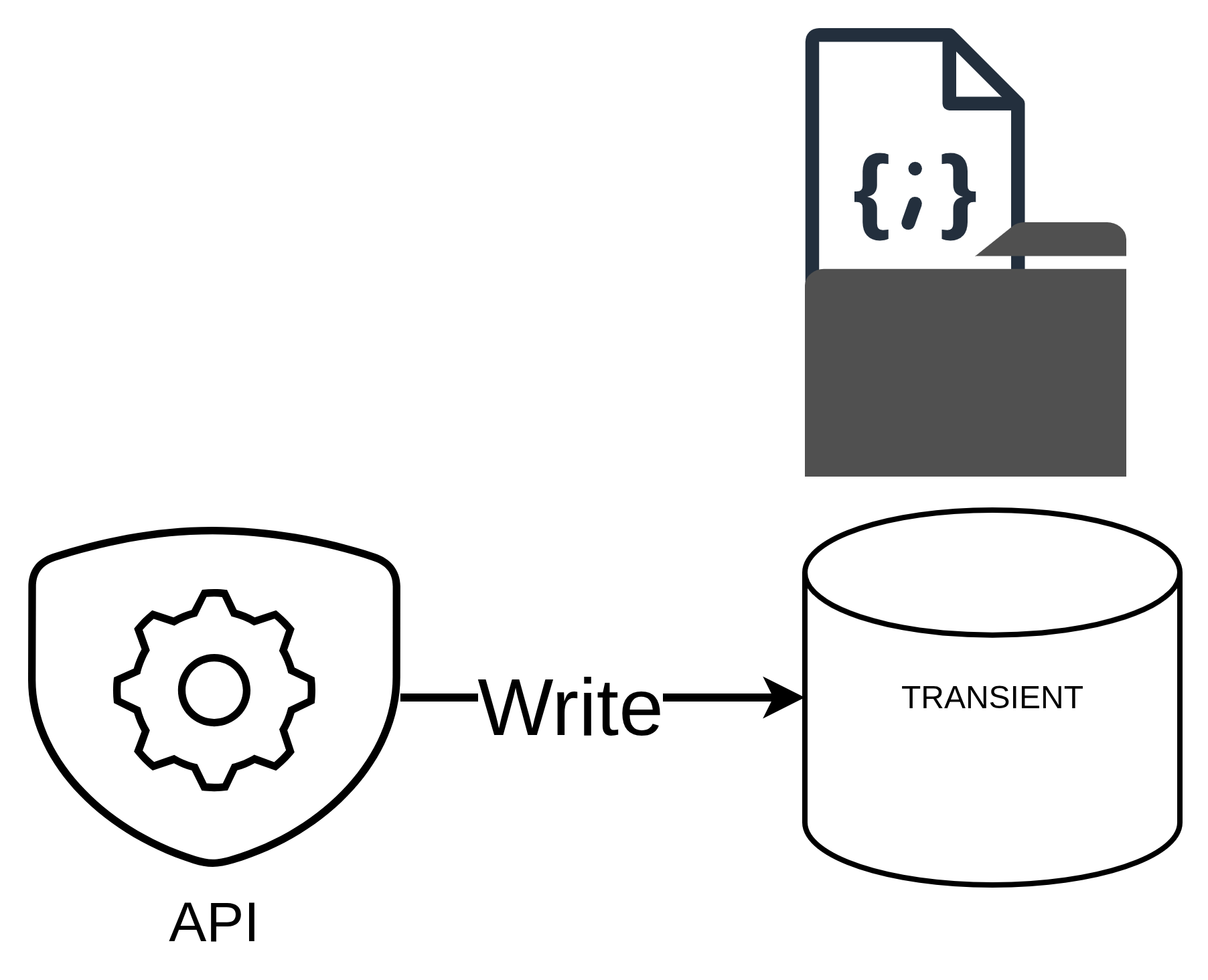
Transient Data Loading
The ingestion process begins with the collection of raw traffic data from the Rennes Metropole API. This data is stored in a transient folder as JSON files folder, which serves as a temporary storage location before further processing.
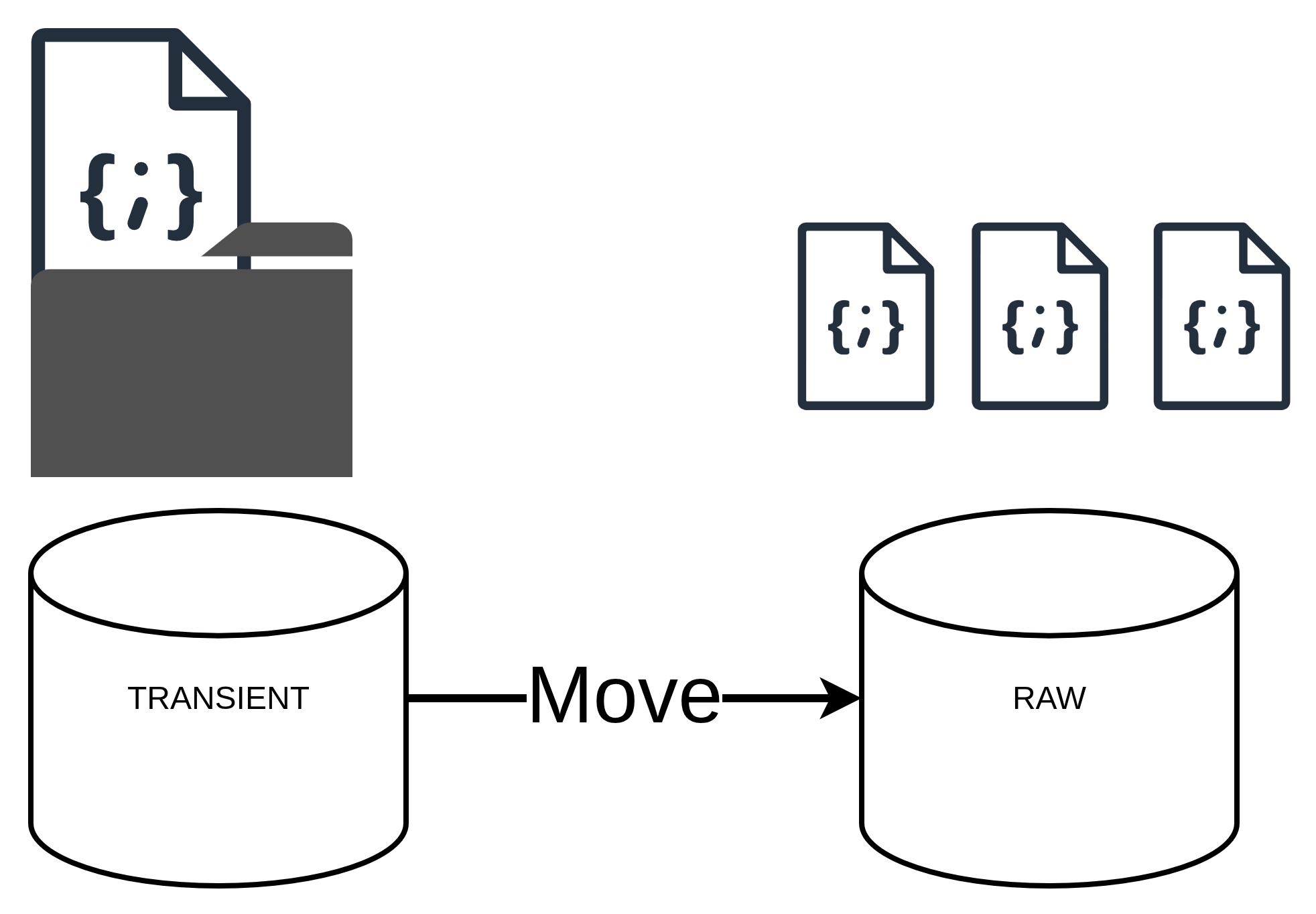
Raw Data Loading
Once the data is collected, it is moved to a raw data folder as JSON files. This step ensures that the raw data is preserved for any future reference or reprocessing needs. The raw data is structured in a way that allows for easy access and manipulation.
Spark Structured Streaming Transformation
The transformation component of the FlowState project is responsible for processing the raw traffic data from the Rennes Metropole API and transforming it into a format suitable for analysis and visualization. This is achieved using Apache Spark Structured Streaming, which allows for real-time processing of streaming data.
Data Schema
The raw data from the Rennes Metropole API is in JSON format with the following schema:
val schema: StructType = StructType(Seq(
    StructField("averagevehiclespeed", IntegerType),
    StructField("datetime", StringType), // will be converted to timestamp later
    StructField("denomination", StringType),
    StructField("geo_point_2d", StructType(Seq(
        StructField("lat", DoubleType),
        StructField("lon", DoubleType)
    ))),
    StructField("geo_shape", StructType(Seq(
        StructField("geometry", StructType(Seq(
            StructField("coordinates", ArrayType(ArrayType(DoubleType))), // 2D array because LineString contains [lon, lat] coordinates
            StructField("type", StringType)
        ))),
        StructField("type", StringType)
    ))),
    StructField("gml_id", StringType),
    StructField("hierarchie", StringType),
    StructField("hierarchie_dv", StringType),
    StructField("id_rva_troncon_fcd_v1_1", IntegerType),
    StructField("insee", IntegerType),
    StructField("predefinedlocationreference", StringType),
    StructField("trafficstatus", StringType),
    StructField("traveltime", IntegerType),
    StructField("traveltimereliability", IntegerType),
    StructField("vehicleprobemeasurement", IntegerType),
    StructField("vitesse_maxi", IntegerType)
))
This schema defines the structure of the traffic data, including:
averagevehiclespeed: The average speed of vehicles on the road segmentdatetime: The timestamp of the data pointdenomination: The name of the road segmentgeo_point_2d: The geographical coordinates (latitude and longitude) of the road segmentgeo_shape: The geographical shape of the road segment, including coordinates and typeid_rva_troncon_fcd_v1_1: The unique identifier of the road segmenttrafficstatus: The status of traffic on the road segment (e.g., freeFlow, heavy, congested)traveltime: The travel time on the road segmenttraveltimereliability: The reliability of the travel time estimate- And other metadata fields
Basic Transformation
The basic transformation process involves several steps:
- Timestamp Conversion: Converting the
datetimestring to a timestamp for easier temporal analysis - Period Addition: Adding a
periodcolumn that represents a 1-minute window, facilitating temporal aggregations - Column Renaming: Renaming
id_rva_troncon_fcd_v1_1tosegment_idfor better readability - Coordinate Conversion: Converting the
geo_shape.geometry.coordinatesto JSON format for easier handling - Traffic Speed Categorization: Adding a
traffic_speed_categorycolumn that categorizes the average vehicle speed into low, medium, and high
def transform(df: DataFrame): DataFrame = {
    df
        .withColumn("timestamp", to_timestamp(col("datetime"))) // Explicit conversion
        .withColumn("period", window(col("timestamp"), "1 minute").getField("start"))
        .withColumnRenamed("id_rva_troncon_fcd_v1_1", "segment_id")
        .withColumn("coordinates", to_json(col("geo_shape.geometry.coordinates")))
        .withColumn(
            "traffic_speed_category",
            when(col("averagevehiclespeed") < 30, "low")
                .when(col("averagevehiclespeed") < 70, "medium")
                .otherwise("high")
        )
}
Streaming Process
The streaming process in FlowState uses Spark Structured Streaming to read data from the raw data directory, apply the transformations, and write the results to various sinks:
- Reading Data: Reading JSON files from the raw data directory using the defined schema
- Applying Transformations: Applying the basic transformations to the data
- Windowed Aggregations: Performing windowed aggregations to calculate statistics over time
- Writing to Sinks: Writing the transformed data to various sinks, including:
- PostgreSQL database for visualization and analysis
- Checkpoint directory for fault tolerance and exactly-once processing
Configuration
The transformation process is configured through the AppConfig class, which provides various parameters for the Spark Structured Streaming job:
SPARK_SLIDING_WINDOW_DURATION: The duration of the sliding window for aggregations (default: "5 minutes")SPARK_SLIDING_WINDOW_SLIDE: The slide interval for the sliding window (default: "1 minute")SPARK_TRIGGER_INTERVAL: The trigger interval for the Spark streaming job (default: "60 seconds")SPARK_ENABLE_SLIDING_WINDOW: Whether to enable sliding window aggregation (default: false)SPARK_ENABLE_HOURLY_AGGREGATION: Whether to enable hourly aggregation (default: true)SPARK_ENABLE_MINUTE_AGGREGATION: Whether to enable minute aggregation (default: true)SPARK_WATERMARK: The watermark duration for late data handling (default: "1 minutes")
These configuration parameters allow for fine-tuning the transformation process to meet specific requirements.
Visualization

The visualization component of the FlowState project is implemented using Streamlit, a Python framework for building data applications. The visualization provides an intuitive interface for exploring and analyzing the traffic data collected from the Rennes Metropole API.
Application Structure
The Streamlit application is organized into several pages, each focusing on a different aspect of the traffic data:
- Main Page: Provides an introduction to the FlowTrack platform and its key features
- Home Page: Displays an overview of the current traffic situation with key metrics and visualizations
- History Page: Allows for exploration of historical traffic data with interactive filters and visualizations
- Map Page: Shows a real-time map of the traffic situation with color-coded road segments
Main Page
The main page (streamlit_app.py) serves as the entry point to the application and provides:
- A title and introduction to the FlowTrack platform
- A description of the key features of the platform
- Navigation instructions for accessing the other pages
- A direct link to the History page for quick access to traffic evolution data
Home Page
The Home page (1_Home.py) provides an overview of the current traffic situation with:
- Automatic refresh every 60 seconds to ensure up-to-date information
- Key performance indicators (KPIs) including:
- Number of active road segments
- Number of unique routes
- Dominant traffic status
- Visualization of traffic status distribution using a bar chart
- Visualization of average speed distribution by traffic status using a box plot
- Access to raw data in an expandable section
# --- KPIs globaux ---
st.markdown("### 📊 Indicateurs clés")

nb_segments = len(df)
nb_routes = df["denomination"].nunique()
status_dominant = df["trafficstatus"].mode()[0]

c1, c2, c3 = st.columns(3)
c1.metric("🧩 Tronçons actifs", nb_segments)
c2.metric("🛣️ Routes uniques", nb_routes)
c3.metric("🚦 Statut dominant", status_dominant.capitalize())
History Page
The History page (2_History.py) allows for exploration of historical traffic data with:
- Automatic refresh every 60 seconds
- Temporal resolution selection (minute or hour)
- Global indicators with comparisons to previous periods
- Interactive filters for routes and traffic status
- Visualization of key metrics (speed, travel time, reliability) using line charts with tabs
- Data export functionality (CSV download)
- Access to raw filtered data in an expandable section
# --- Graphiques ---
def make_line_chart(df, y_column, label):
    return (
        alt.Chart(df)
        .mark_line(point=True)
        .encode(
            x=alt.X("period:T", title="Période"),
            y=alt.Y(f"{y_column}:Q", title=label),
            color=alt.Color("denomination:N" if ignore_status else "trafficstatus:N", title="Légende"),
            tooltip=["period:T", "denomination", "trafficstatus", y_column]
        )
        .properties(height=300)
    )
Map Page
The Map page (3_Map.py) shows a real-time map of the traffic situation with:
- Automatic refresh every 60 seconds
- Filtering by traffic status
- Color-coded road segments based on traffic status:
- Green: Free flow
- Orange: Heavy traffic
- Red: Congested
- Gray: Unknown
- Interactive map with tooltips showing road name, traffic status, and average speed
- Access to raw data in an expandable section
# --- Création carte Folium ---
traffic_map = folium.Map(location=[48.111, -1.68], zoom_start=13)

for _, row in df.iterrows():
    try:
        coords_raw = json.loads(row["coordinates"])
        coords_latlon = [(lat, lon) for lon, lat in coords_raw]
        color = status_colors.get(row["trafficstatus"], "gray")
        tooltip = f"{row['denomination']} ({row['trafficstatus']}) – {row['averagevehiclespeed']} km/h"
        folium.PolyLine(
            locations=coords_latlon,
            color=color,
            weight=4,
            opacity=0.8,
            tooltip=tooltip
        ).add_to(traffic_map)
    except Exception as e:
        st.error(f"Erreur avec le segment {row['segment_id']}: {e}")
Data Loading
The visualization component connects to the PostgreSQL database to fetch the traffic data. The data loading is handled by the data_loader.py module, which provides functions for:
- Establishing a connection to the database
- Running SQL queries to fetch data
- Caching data to improve performance
@st.cache_data(ttl=60)
def load_latest_snapshot() -> pd.DataFrame:
    query = """
            SELECT *
            FROM road_traffic_feats_map
            WHERE timestamp = (SELECT MAX(timestamp) FROM road_traffic_feats_map) \
            """
    return run_query(engine, query)
Visualization Libraries
The visualization component uses several libraries to create interactive visualizations:
- Altair: For creating bar charts, line charts, and box plots
- Folium: For creating interactive maps
- Streamlit Folium: For integrating Folium maps with Streamlit
- Streamlit Autorefresh: For automatically refreshing the pages at regular intervals
These libraries provide a rich set of visualization capabilities that make the traffic data more accessible and understandable.
Want to Contribute?
This project is open source. Contributions, issues, and feature requests are welcome!